PDF to Excel graphic Fast, focused workflow
Convert tool

PDF to Excel

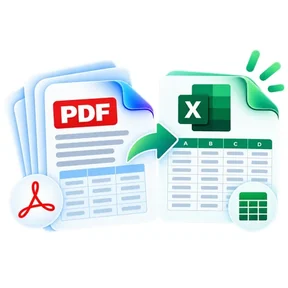
Extract positioned PDF text into structured worksheet rows and columns and download a real XLSX workbook.

Processes locally in your browser No account required

Loading converter…

How to pdf to excel

  1. Choose a PDF with selectable text or tables.
  2. Select pages and tune row/column detection if needed.
  3. Convert and download a genuine XLSX workbook with a worksheet per PDF page.

What this tool does

ILovePDFMore groups PDF text by visual Y positions into rows and uses X gaps to infer columns. This works best with clearly aligned digital tables. It is not OCR and may need cleanup for irregular layouts, merged cells or scanned documents.

Frequently asked questions

Can ILovePDFMore detect tables automatically?

It detects table-like rows and columns from positioned selectable PDF text. Complex or borderless layouts can require spreadsheet cleanup.

Can I choose specific pages?

Yes. Enter page numbers or ranges, or leave the field blank to process all pages.

Does this tool use OCR?

No. Image-only scans do not contain positioned selectable text and need OCR before table extraction.

Do I get a real Excel file?

Yes. The result is a genuine XLSX workbook with separate worksheets for the selected PDF pages.

Quick answer

PDF to Excel: fast browser-based PDF work

PDF to Excel lets you extract positioned PDF text into structured worksheet rows and columns and download a real XLSX workbook. Open the tool in a modern browser, choose your file, apply the available settings and download the result. No account is required.

Works onlineNo desktop installation required No accountOpen the tool and start immediately Focused controlsSettings are specific to this PDF task
Common uses

When to use PDF to Excel

  • Move content between PDF and common office formats
  • Prepare documents for editing or presentation
  • Create shareable PDF versions from source files

Processing note: Supported core operations are designed to process the selected file in the active browser session.